
Access Note: It is important to note that all collaborators who use this self-registration method will enter the system with the default role of Consultants and will automatically gain access to all sites that you have registered in that organization.
To start using the platform, the first step is to log in to your workspace. P-ERM uses a dedicated access system to ensure you connect to the correct environment of your organization.
Access Routes
Depending on your company’s configuration, you have two main ways to log in:
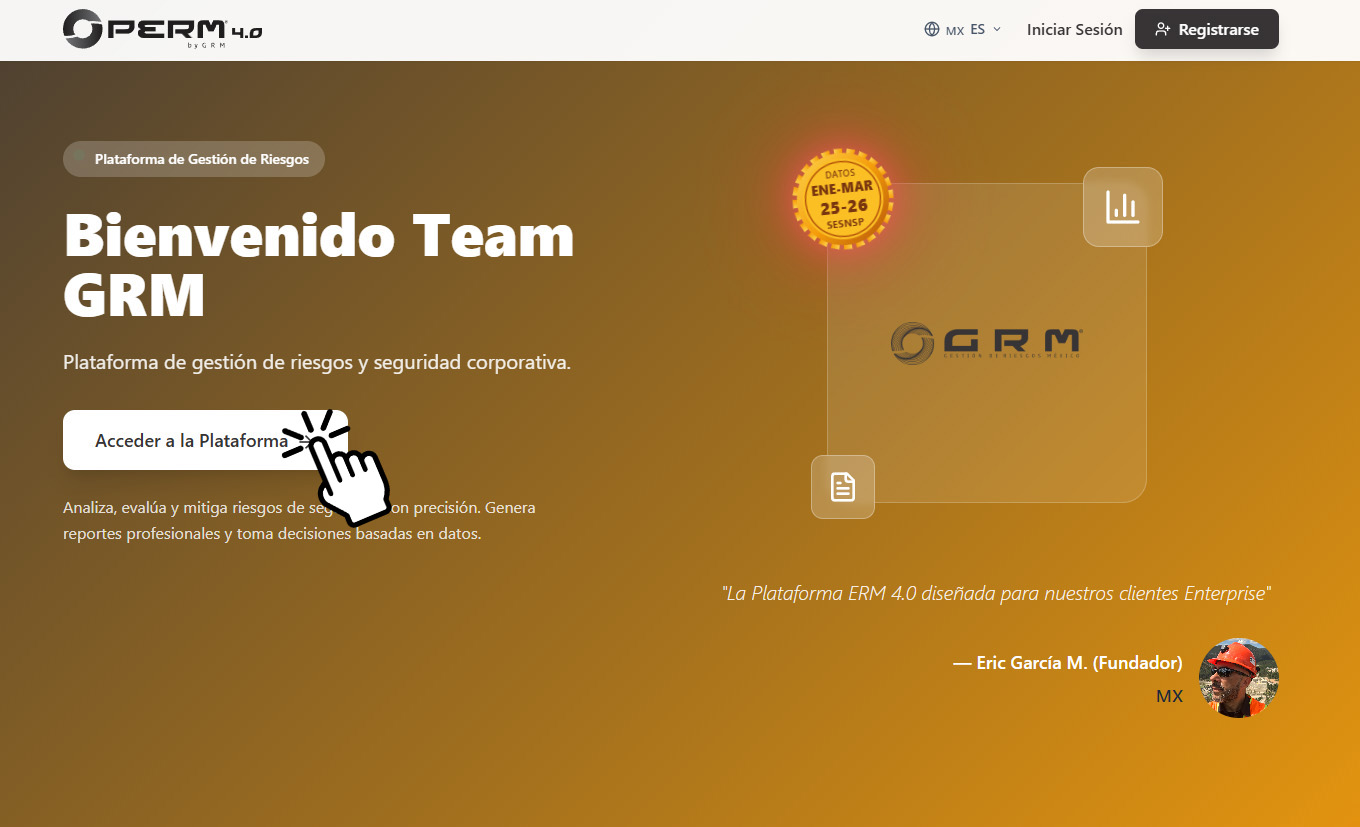
- Corporate Access (Recommended): For Enterprise licenses. Log in through your organization’s dedicated URL, which uses the format https://www.p-erm.com/enter/your-company-name.
- General Access: If you don’t have your direct link handy, you can access at any time from the standard portal at p-erm.com/login.
Login Instructions
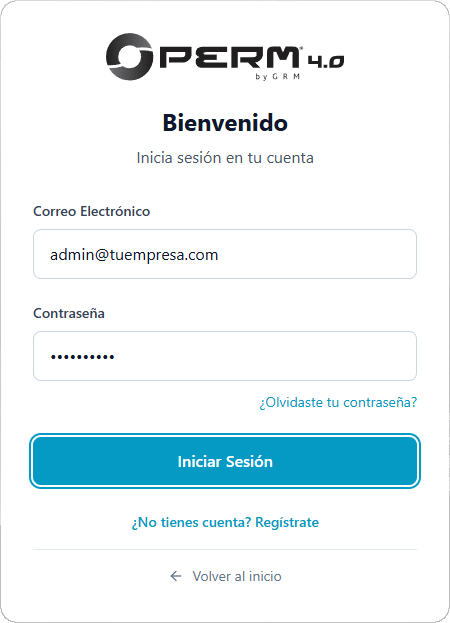
- Enter your credentials: On the login screen, type the corporate email linked to your account and your password.
- Log in: Click the login button to validate your data and access your main dashboard.
- Account recovery: If you don’t remember your password, select the recovery option (“Forgot my password”). The system will send you an email with a secure link to reset it.
💡 Security Note: Your credentials are personal and non-transferable. All assessments and actions in the system are linked to your user to maintain traceability and data integrity.
Two-Factor Authentication (2FA)
Enterprise licenses include Two-Factor Authentication (2FA).
Exclusive to organizations operating under Enterprise licenses, the platform features an additional security layer through Two-Step Authentication (2FA). When this feature is active, the login process will require an extra validation step to ensure the protection of corporate information.
2FA Configuration (For Administrators) As an Enterprise account administrator, you have full control to make this measure mandatory and define the validation frequency. To activate this policy:
- Navigate to the Organizations section in the left sidebar menu.
- Click on the menu icon (three vertical dots) located next to the “Organizations” tab and select Configure Methodologies.
- Navigate to the last top tab called Security.
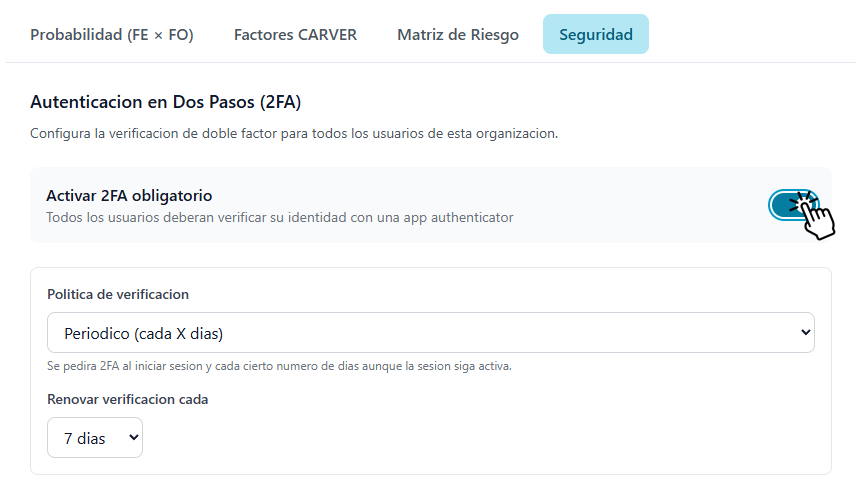
- Enable the Activate mandatory 2FA toggle.
- Define your Verification policy. For example, you can select “Periodic (every X days)” and configure the system to request verification renewal every 7 days, ensuring the session remains continuously protected.
Invitation Code
To streamline the onboarding of large teams or multiple collaborators, the platform offers a controlled self-registration tool. This feature allows you to scale your operation and eliminates the administrative need to create profiles one by one.
Invitation Code Configuration (For Administrators) Within the same Security section (accessible from the Organization menu > Configure Methodologies), you will find the section to generate an Invitation Code.
Administrator Configuration To enable this feature, follow these steps:
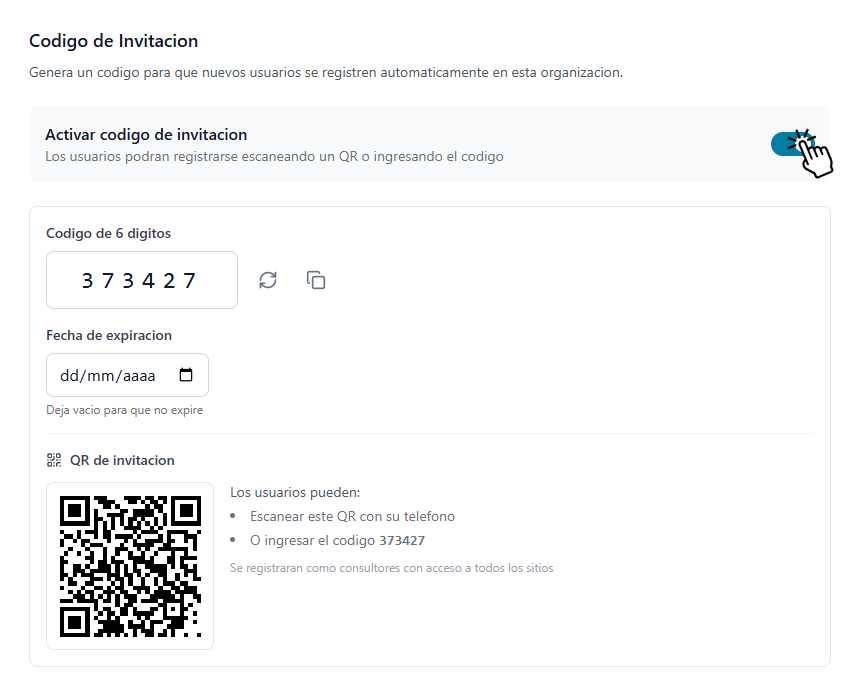
- Locate the Invitation Code section and turn on the main toggle to activate it.
- The system can automatically generate a 6-digit Code and a QR Code. You have the option to refresh the numeric code if you need to change it or add a custom one.
- To maintain control over who enters and when, you can set an Expiration date. If you leave this field empty, the invitation will remain open indefinitely.
- Click Save Invitation to apply the changes.
Guest User Experience The process for your team is highly intuitive and optimized for mobile devices:
- The user scans the QR code with their phone or mobile device.
- They will be directed to a Create account screen customized with the organization’s logo.
- They only need to enter their Full name, Email address, and set a Secure password (minimum 6 characters). The 6-digit invitation code will appear pre-filled automatically.
- By clicking Create account, the user will be registered immediately.
Access Note: It is important to note that all collaborators who use this self-registration method will enter the system with the default role of Consultants and will automatically gain access to all sites that you have registered in that organization.