The Assets module is designed to register, categorize, and assign value to the fundamental elements of an organization that require protection. An asset can be any tangible or intangible resource (people, goods, processes, and information) that resides within a specific Site.
Access Path
To access asset management, follow the standardized navigation path:
- Make sure you are in the Home view of the Main Dashboard.
- Locate the horizontal ribbon of operational indicators and click directly on the card labeled Assets.
- The system will open the administration interface and display in the left sidebar the section for CATALOGS, allowing fluid navigation between assessment elements.

The main screen of this module features a search bar for quick filtering and an interactive directory. Each record in the list shows a color identifier, the asset name, its operational status, and action buttons to view, edit, or delete the element.
Procedure for Creating an Asset
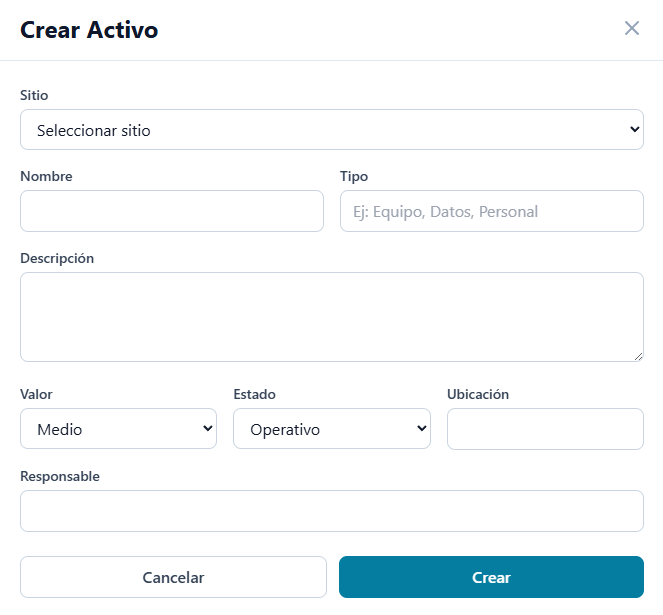
To register a new resource in the system, locate and press the + Create Asset button in the upper right corner. This will display a configuration window requiring the following information:
- Site: Mandatory dropdown menu to link the resource to a previously registered facility or location.
- Name: Text field to assign the official or technical name of the resource (e.g., Machine Room, Main Server).
- Type: Text field to classify the nature of the asset (e.g., People, Goods, Processes, Information).
- Description: Extended text area to document specific characteristics, operational functions, or relevant details of the resource.
- Value: Selector to establish the initial level of importance or criticality of the element for the organization (e.g., Medium).
- Status: Dropdown menu to indicate the current condition of the resource (e.g., Operational).
- Location: Text field to specify the exact physical location or logical environment where the asset is located within the site.
- Responsible: Identification of the area, position, or person responsible for the custody, maintenance, or management of the asset.
Once the required fields are completed, click the Create button to consolidate the record in the site’s catalog. If you wish to abort the operation, select Cancel to close the window without saving changes.