The Organizations module is the structural pillar of the platform. An Organization acts as the main container where sites and catalogs (Assets, Threats, Scenarios, and Controls) will be grouped, along with all risk assessments of a corporate entity. It is at this level where the assessment model that will govern the site analyses for the organization is defined.
Module Access
To manage organizations in the system:
- Select the Organizations (Orgs) option (below the “Home” button).
The main screen of this module features a search bar to quickly locate created entities and a general listing of organizations (detailing their name, creation date, and action buttons for editing or deletion). In the upper right area, you will find controls to toggle the view between grid and list format.
Creating a New Organization
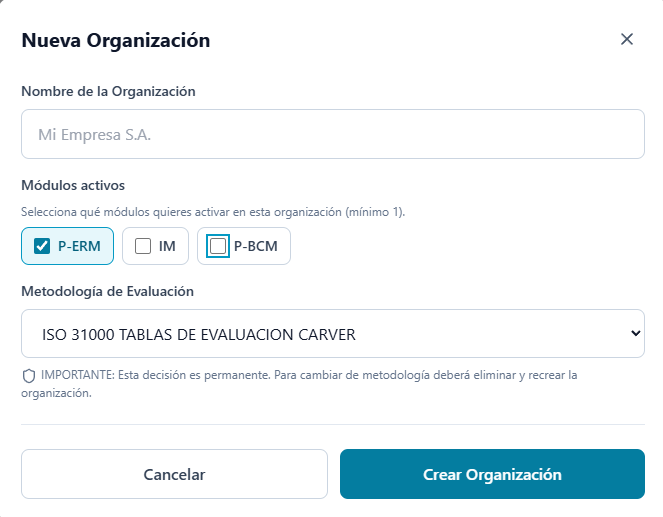
To set up a new workspace, click the + New Organization button located in the upper right corner. A configuration window will open with the following parameters:
- Organization Name: Text field for entering the official identifier of the corporate entity (for example, the trade name or legal name).
- Active modules: Multiple selection panel to enable the suite tools that this organization will use. At least one must be activated. The available options are:
- P-ERM: Risk analysis and management.
- IM: Incident management and response.
- P-BCM: Business continuity management.
- Assessment Methodology: Click the dropdown menu to choose the regulatory framework that will govern your calculations. Select the appropriate option for your project, such as ISO 31010 CARVER ASSESSMENT TABLES.
⚠️ IMPORTANT: The decision regarding the Assessment Methodology is permanent. Once the organization is created, the base assessment model cannot be altered. To change methodology in the future, the organization must be completely deleted and recreated from scratch.
To confirm and consolidate the new workspace, click the Create Organization button. Immediately, the entity will be available in the context selectors of the Main Dashboard, enabling the platform for registering the subsequent operational hierarchy.
Organization Editing and Corporate Branding
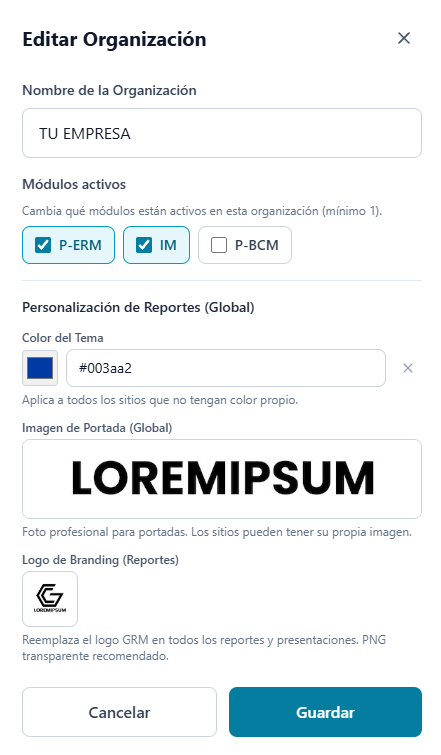
Within Organization management, the platform allows access to the Edit Organization panel, an environment designed to configure active tools and customize the visual identity of all deliverables generated by the system.
This panel is divided into two strategic configuration blocks:
Active Modules Control
Allows the administrator to enable or restrict access to the different suite solutions according to the licensing or the operational needs of the organization. From here, the activation of key modules such as P-ERM (Enterprise Risk Management), IM (Incident Management) and P-BCM (Business Continuity) is managed.
Report Customization (Global)
This function is designed to standardize the organization’s corporate identity across all document outputs. The settings established here will act as the master design for all sites and audits:
-
Theme Color: Allows entering the organization’s institutional color code (Hexadecimal). This color will be automatically applied to headers, charts, and visual elements of PDF reports across all sites that do not have a specific color assigned.
-
Cover Image (Global): Enables uploading an image (logo for example) that will serve as the standardized cover for all reports and executive presentations generated from the platform; however, each site can have its own image.
-
Branding Logo (Reports): A fundamental tool for generating executive deliverables. Allows uploading the organization’s official logo (PNG format with transparent background is recommended) to automatically replace the platform’s default logo in all documents, reports, and presentations, ensuring that information is exported under the client’s brand and identity.