The Scenarios module constitutes the core of risk analysis. In this section, the direct link between an organization’s resource and a risk factor is established. A scenario materializes by crossing a previously registered Asset with one or multiple Threats, thus defining the exact context to be assessed.
Access Path
To manage risk scenarios, use the standard navigation path:
- Make sure you are in the Home view of the Main Dashboard.
- Locate the horizontal ribbon of operational indicators and click directly on the card labeled Scenarios.
- The system will open the administration interface and display in the left sidebar the section for CATALOGS, where this module is located.

The main screen presents a directory of configured scenarios. Each row details the identifier (ID), the selected Asset, the linked Threat, the assessment status, the calculated Risk Level (e.g., Acceptable, Tolerable, Unacceptable, Inadmissible), the creation date, and the corresponding action controls.
Procedure for Creating a Scenario
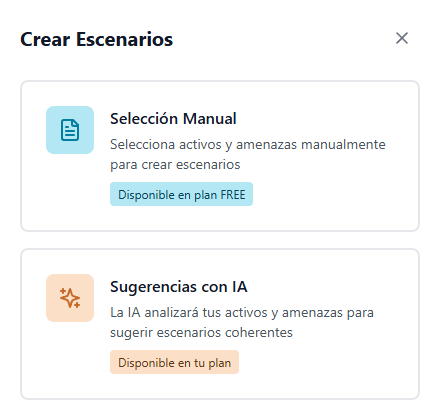
To configure a new logical relationship, click the + Create Scenario button located in the upper right corner. The system will display an initial window offering two configuration modes:
- Manual Selection: Allows the user to choose assets and threats directly and hierarchically.
- AI Suggestions: Analytical tool that evaluates the site’s resources to propose coherent scenarios automatically.
Manual Selection Interface When opting for the manual method, a work environment divided into two main sections will open:
- Left Panel (Assets): Presents the site’s resource catalog classified by structural categories, such as PEOPLE, GOODS, PROCESSES, and INFORMATION. The first step is to click on the specific asset you want to analyze (e.g., Personnel).
- Right Panel (Threats): Once the asset is selected, this panel displays the risk factor catalog divided into NATURAL, OPERATIONAL, SOCIAL, and TECHNOLOGICAL. The user must check the boxes corresponding to one or more threats that have the potential to affect the selected asset.
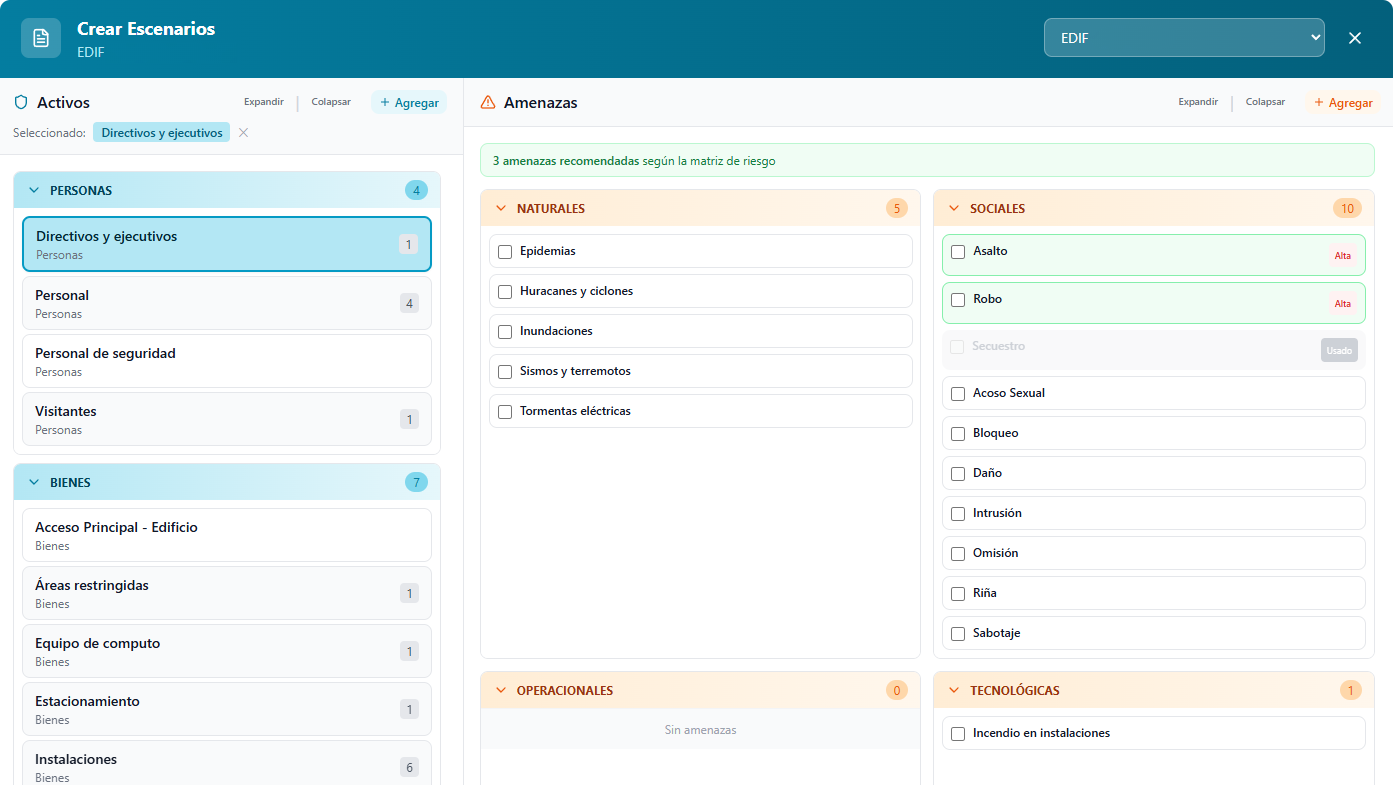
To streamline configuration, the Threats panel includes visual support indicators. Labels with the legend “Used” indicate relationships that have already been previously configured with that asset, while color labels (e.g., “High”) highlight system recommendations based on the site’s risk matrix.
Upon selecting the threats and confirming the operation, the logical cross is established, preparing the scenario for its subsequent assessment.