Tabla de contenidos
In the upper right corner of the interface, the system provides a toolbar with constant access. This section groups data export functions, display utilities, and active session management.
Reports and Documentation Module
- Book: Main tool for integrating and downloading consolidated reports in PDF format, which include visual representations and site infographics.
- Reports: Module for individual and specific download of reports generated by the platform.
- Saved: Quick access repository containing the history of previously generated and stored reports in the system.

Interface Controls and Support
- Help (Question mark): Access to support documentation and user guides.
- My report tickets (Inbox): Tracking center for technical support requests or reported incidents.
- Dark mode (Moon): Visual theme toggle to adapt the interface to low-light conditions.
- Full screen (Square): Expands the dashboard view to hide browser borders and maximize the workspace.
- Feedback (Speech bubble): Direct channel to send comments, suggestions, or usability reports to system administrators.

Account and Session Menu
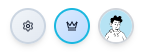
On the far right, a block composed of three icons (gear, crown, and avatar) is displayed. This set functions as a unified button. Clicking on it opens a panel with the following information and options:
- Corporate identity: Full name and email of the active user.
- User Role: Informational labels indicating the assigned role in the system (e.g., Administrator) and the current licensing level (e.g., ENTERPRISE).
- Change profile photo: Direct access to customize the user’s avatar.
- My usage: Statistical panel detailing resource usage and operational limits of the account.
- Log out: Secure exit button to end the connection with the platform.